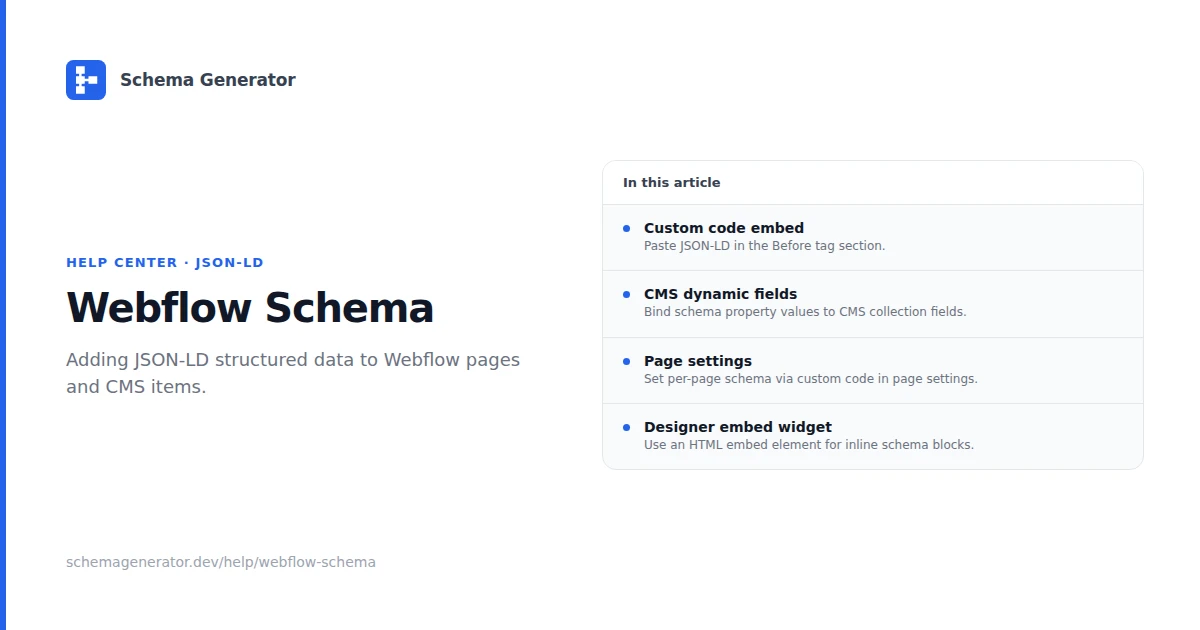
Webflow Schema Integration
Webflow does not generate schema automatically. You add JSON-LD through custom code in the head, HTML embeds, or CMS-driven dynamic values.
Where to place JSON-LD
Single static page
Project Settings → Custom Code → Head Code, or Page Settings → Custom Code → Head for one page only.
CMS collection pages
Add an HTML Embed or custom code block on the collection template. Bind CMS fields to JSON properties with Webflow's dynamic text syntax inside the script (escape quotes carefully).
Site-wide Organization markup
Put Organization JSON-LD in site head code on the homepage template only, or use conditional embeds so it does not repeat on every page type.
Example: Organization on homepage
Build the JSON with the Schema Generator, then paste into head custom code:
<script type="application/ld+json">
{
  "@context": "https://schema.org",
  "@type": "Organization",
  "name": "Your Company",
  "url": "https://example.com"
}
</script>
Replace static strings with CMS fields where the data lives in a collection.
Common types
| Page | Type | Notes |
|---|---|---|
| Homepage | Organization | name, url, logo, sameAs |
| Blog post template | Article | headline, author, datePublished |
| Static landing page | WebPage | name, description, url |
Validation
- Publish the site (staging URLs work for Rich Results Test if public)
- Run Google Rich Results Test
- View page source and confirm one valid JSON-LD block per entity
- Monitor Google Search Console after launch
Troubleshooting
- Custom code must sit inside
<head>, not inside a body-only section - Invalid JSON (trailing commas, unescaped quotes) breaks parsing
- CMS dynamic values must match what visitors see on the page
See CMS Integrations for the shared validation workflow.